DemoBuilder
Required Intune Setup
To have things nicely done, we are going to do a couple of quick settings on Intune. If you have already done some stuff in Intune, you can safely ignore these steps, or mix them up with your own.
Adding GSA client to Intune.
Although this is quite simple, we are going to skip this phase and use a pre-packaged client. This will get out of date eventually, so you can follow the steps here to re-package it yourself next time.
The pre-packaged binary should be available to download from the binary folder on this repo. Find it here
With the intunewin file, go to Intune Portal, and follow the steps on this article, starting from the Deploy Global Secure Access Client with Intune, stopping at the Update the client to a newer version. 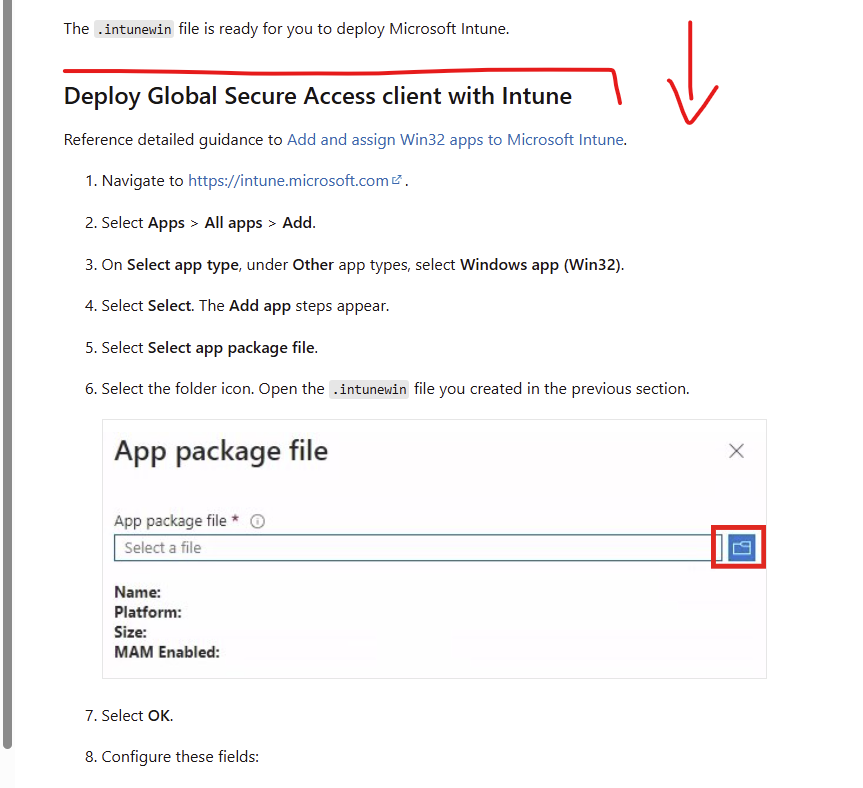
Important: in the step Under Required, select +Add group. Select a group of users or devices. Select Select. We really want to have it required for all users and all devices
Configure ESP and AutoPilot.
- On the Intune Portal, intune.microsoft.com, go to Devices, Enrollment
- Second to last, Enrollment Status Page
- Click on Default’s Name, which should be All Users and Devices
- Change it’s properties, settings, and make it look like this
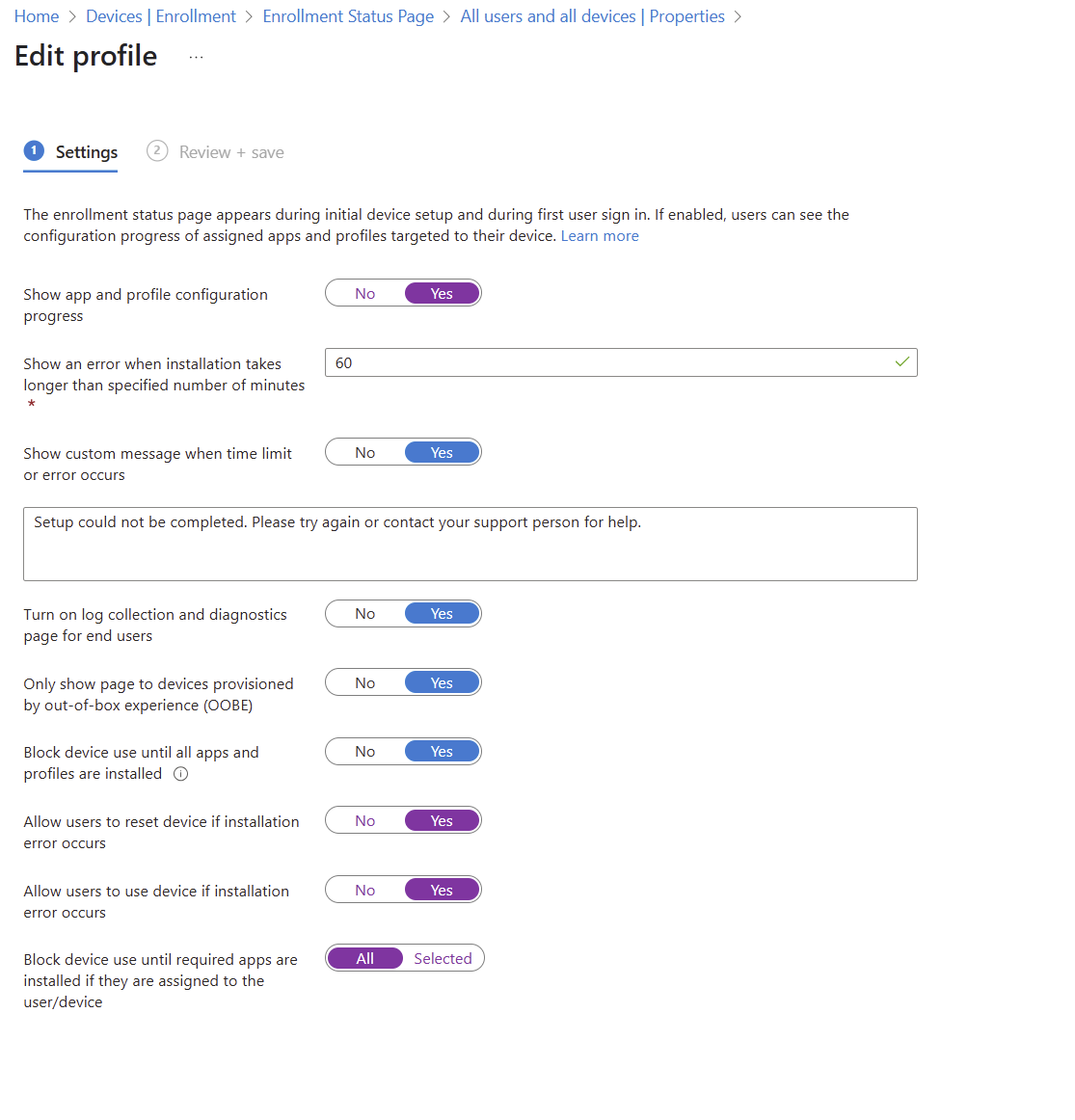
- Take note of the last option, before saving, change it to selected , click on Select Apps, and add the Global Secure Access Client we added before
- Click Save a couple of times. Now you can go and continue your W11 process.